

WI-FI EXTENDERS
Optimize Wi-Fi in every room
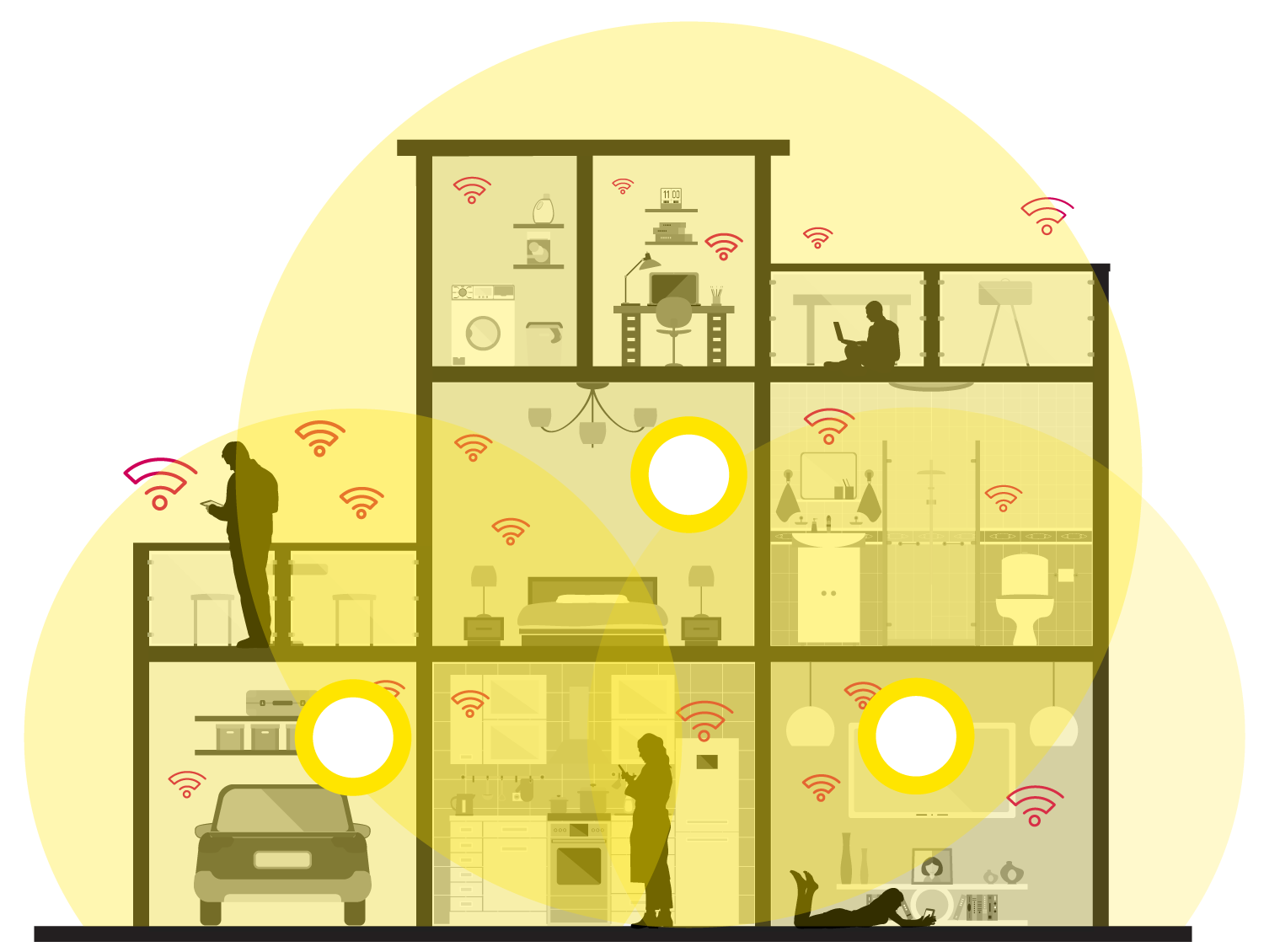
Avoid placing your mesh extender in corners, behind walls, in closed rooms, next to metal objects, or electronics.
Add extenders on every floor to increase Wi-Fi coverage in other rooms and roof.
The main Mesh Extender needs to placed and connected to the Epic Internet router.
Optimize your internet connection throughout your entire home.
With Epic Wi-Fi Mesh Extenders, overcome any Wi-Fi challenges in your home. Whether it’s thick wall, number of floors or hard to reach places – our extenders have got you covered. Enhance Wi-Fi coverage and improve your Epic Home Internet up to ten times.
Apartments
(1-2 bedrooms)
2 WiFi Extenders Recommended
Houses
(3 bedrooms)
3 WiFi Extenders Recommended
Make sure to consult our sales agents to help recommend how many extenders you might need in your home!
Get started
I'm an existing Fibre Internet customer
I'm a new customer

Extend your WiFi
Offering a Wi-FI 6 mesh solution that increases Wi-Fi coverage by up to 150m2 and improves your signal strength by ten times.

Easy to Install
Simply plug in and you’re good to go. Once paired with your modem you can move to your desired location without additional wiring.

Great Value
Best value Wi-FI 6 mesh devices in Malta starting from 3.99 per month for the first device. Additional extenders at just 3Eur more per month.

Wi-Fi Calling
You can make and receive Wi-Fi calls on your mobile even in areas with poor mobile coverage in your home that is covered by Epic Home Internet.
How to install your Epic Wi-Fi Extenders
Our Wi-Fi mesh is easily installed at the touch of a button, after being plugged into a power socket. Check out our easy to follow step-by-step guide!

FAQs
Why should I buy Epic WiFi Extender?
Benefits of the Epic WiFi Extender compared with a traditional WiFi extender
Epic WiFi Extender projects the same WiFi ID as the modem, what does this mean?
You do not need to reconnect or setup your devices to the expanded network, they will connect automatically once the Epic WiFi Extender is setup.
You can move throughout your home and all your devices will automatically connect with the strongest and fastest WiFi signal strength seamlessly.
Epic WiFi Extenders can be connected to a modem wirelessly with WPS, what does this mean?
The means that the Epic WiFi Extender can easily be installed, in most cases at the touch of a button.
Current extenders are required to be plugged into a power socket and as such can be affected by any devices plugged into your home power supply and over time interference through power connections will degrade a WiFi expanders life-span.
In Tests carried out by our partner the Epic WiFi Extender:
- Increases home wifi coverage by 150m2
- Improves WiFi signal strength by ten times against the current generation of WiFi expanders
- Allows double the amount of devices to be connected wirelessly while maintaining your current WiFi speeds.
Connecting for the first time
Setting up the first extender via Wi-Fi on companion mode
- Power the extender UP by pressing the on/off button.
- The Power LED becomes solid green. After a few seconds, Link LED is blinking red.
- Press the WPS button on the side of the extender for more than 3 seconds.
- Power LED is green. Link LED is blinking. WiFi LED is blinking green the extender is creating the connection with your modem.
- Power LED is green. Link LED is not flashing anymore. WiFi LED is green the extender is connected to the gateway. The backhaul is established. The Smart WiFi Hub is ready to use.
Finding the perfect spot
If the Link LED of the extender is yellow or red, that means that the quality of the link between the extender and the gateway is not optimal. You may want to move the extender around in the room, until the Link LED turns green, which indicates a good signal quality.
How to check the device is working & basic troubleshooting
Basics:
The Power LED should be solid green.
The backhaul link LED should be SOLID, either green, orange or red. It is best if this LED is solid green, however a solid orange or a solid red is acceptable.
The Wi-Fi Fronthaul LED should be solid green
Basic Troubleshooting:
Power LED flashing all other LED’s solid; Device update is in progress, please wait a few minutes.
WiFi LED flashing all other LED’s solid; the WPS window is open
Power LED is solid green. Link LED is flashing red. Wi-Fi LED is OFF; the device is trying to make a connection to the modem, please wait a few minutes
Power LED is solid green. Link LED is flashing red. Wi-Fi LED is green; the connection between the Smart WiFi hub and your modem has been lost.
What are the technical specifications of the Epic WiFi Extender?
IEEE 802.11ax (WiFi 6)
Tri Band (2.4GHz, 5GHz & dedicated backhaul)
2×2 + 4×4 11ax
2 x Ethernet WAN/LAN ports (1 Gbps)
3 x buttons (Power, Rest & WPS)
3 x LEDs (Power, Link & WiFi)
What size is the Smart WiFi Hub?
The Smart WiFi Hub’s dimensions are 142 x 110 x 57 mm and it weighs 285g.